Develop with Go on Ubuntu
This tutorial shows how to build, run, and debug Go programs on Ubuntu. For instructions on how to install Go and related tooling, including the Delve debugger, see the dedicated guide on install-golang. This article assumes that tooling suggested in that article has been installed.
Creating a Go project
-
Create a project directory and change into it:
$ mkdir heygo && cd heygo -
Initialize the project as a Go module. When initializing a module, provide the URL of a repository for hosting the source. For testing purposes, use a generic URL:
$ go mod init youruser.github.com/heygoThe
go mod initcommand creates ago.modfile in the project root that tracks the version of Go used for the program and any external dependencies.
-
Create a
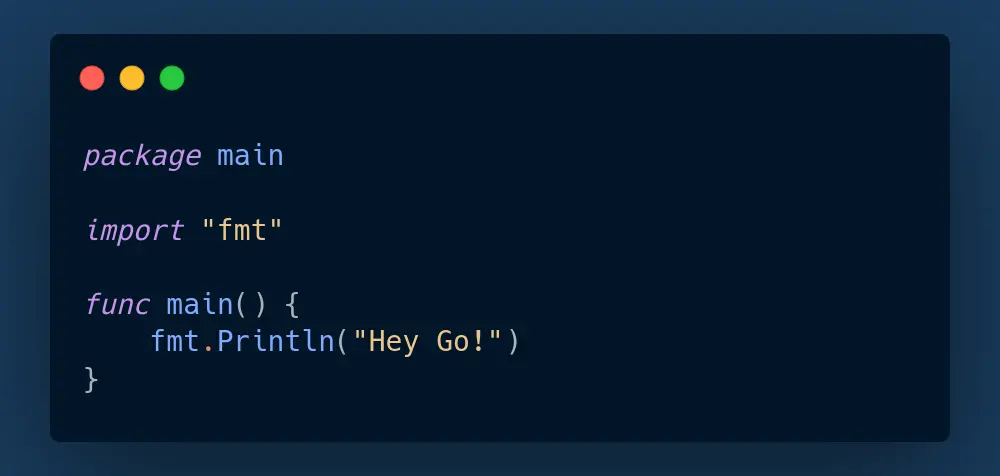
heygo.gofile with the following content:package main import "fmt" func main() { fmt.Println("Hey Go!") }Here, the name of the package,
main, is identified, and thefmtpackage is imported from the Go standard library. Amain()function is defined and a method is called fromfmtto print a line of text that is passed as an argument. -
To compile and run your program, use the
go runcommand. If you pass the current directory as an argument (.), the Go compiler automatically finds the main package and main function during the build:$ go run .This outputs:
Hey Go! -
To build a binary of your program that can run on its own, use the
go buildcommand:$ go build .This creates a new executable file called
heygoin the current directory.Confirm that by listing files in the firectory:
$ lsThis should output:
go.mod heygo heygo.goRunning the
heygobinary should print “Hey Go!”:$ ./heygo
Cross-compilation
Go has excellent cross-platform build capabilities.
By default, running go build as shown above builds a binary that can be run on your Ubuntu system. Different target systems can be set for the compiler.
To set the environment for a Windows AMD64 build, first set the GOOS and GOARCH environment variables by running:
export GOOS=windows GOARCH=amd64This causes go build to create a heygo.exe binary that runs on Windows:
$ go build . && lsgo.mod heygo heygo.exe heygo.goBuilding for multiple targets
For a full list of targets, run:
$ go tool dist listFor this example, filter the output to Windows and Linux on amd:
$ go tool dist list | grep 'amd' | grep -E 'windows|linux'Create a Makefile that automatically sets the build environment and creates executable binaries for both Windows and Linux platforms:
EXE=heygo
WINDOWS=$(EXE)_win_amd64.exe
LINUX=$(EXE)_linux_amd64

.PHONY: all clean

all: windows linux

windows: $(WINDOWS)
linux: $(LINUX)

$(WINDOWS):
env GOOS=windows GOARCH=amd64 go build -v -o $(WINDOWS) -ldflags="-s -w" ./heygo.go

$(LINUX):
env GOOS=linux GOARCH=amd64 go build -v -o $(LINUX) -ldflags="-s -w" ./heygo.go

clean:
rm -f $(WINDOWS) $(LINUX)
Generate the builds and test the Linux build:
$ make all
$ ./heygo_linux_amd64Improving Go code with the help of tooling
Tooling built in Go, including go vet and gofmt, can be used to debug and format code. Delve is recommended for advanced debugging.
Go vet and gofmt
-
In the same directory where you initialized the module, delete
heygo.goand replace it with a new file,heygoV2.go:package main; import "fmt"; func main() { fmt.Println(greeting); }This code contains a bug and is poorly formatted.
-
Run
go veton the file:$ go vet heygoV2.go vet: ./heygoV2.go:6:14: undefined: greeting -
Fix the error by defining the
greetingvariable:package main import "fmt"; var greeting="Hey Go!" // define a greeting func main() { fmt.Println(greeting); } -
Running
gofmtwith the-wparameter on the file identifies formatting issues and writes necessary changes to the file:$ gofmt -w heygoV2.goIn this case, unneeded semicolons are removed from the
importline, and the call to the print method in themainfunction is indented correctly:package main - import "fmt"; + import "fmt" var greeting="Hey Go!" // define a greeting func main() { -fmt.Println(greeting); + fmt.Println(greeting) }
Debugging with Delve
Delve is a popular debugger for Go code. Many editors, including VSCode and GoLand, support Delve. In this guide, Delve is used as a command-line debugging tool.
-
Create a file to debug called
main.goin a new folder where you have initialized a Go module.This program is intended to calculate the average value from an array of integers. However, there is a bug in the
forloop that needs to be investigated:package main import "fmt" func calculateAverage(numbers []int) float64 { sum := 0 for i := 0; i <= len(numbers); i++ { sum += numbers[i] } return float64(sum) / float64(len(numbers)) } func main() { numbers := []int{10, 45, 30} average := calculateAverage(numbers) fmt.Printf("Average value of numbers is: %.2f\n", average) } -
Initiate a debugging session with Delve by running
dlv debugon the file:$ dlv debug main.goThis puts you in an interactive debugging session. You can interact with the debugger by entering commands after the
(dlv)prompt:Type 'help' for list of commands. (dlv)To exit at any time:
(dlv) exitDelve is used in this example to debug the
calculateAveragefunction. You need to be in a debugging session, indicated by the(dlv)prompt. -
Set a break point at line 7:
(dlv) break main.go:7If the break point is set successfully, you get a message similar to this:
Breakpoint 1 set at 0x49cee9 for main.calculateAverage() ./main.go:7 -
Continue to the
forloop:(dlv) continueDelve shows visually where you are in the code with
=>; in this case, at the start of theforloop:> [Breakpoint 1] main.calculateAverage() ./main.go:7 (hits goroutine(1):1 total:1) (PC: 0x49cee9) 2: 3: import "fmt" 4: 5: func calculateAverage(numbers []int) float64 { 6: sum := 0 => 7: for i := 0; i <= len(numbers); i++ { 8: sum += numbers[i] 9: } 10: return float64(sum) / float64(len(numbers)) 11: } 12: -
Check the value of
sumwith theprintcommand:(dlv) print sumAs expected,
sumhas been initialized to0. -
Step through the
forloop with:(dlv) stepAgain, your position in the code is shown:
> main.calculateAverage() ./main.go:8 (PC: 0x49cf09)
    3:  import "fmt"
    4:
    5:  func calculateAverage(numbers []int) float64 {
    6:    sum := 0
    7:    for i := 0; i <= len(numbers); i++ {
=>  8:      sum += numbers[i]
    9:    }
    10:   return float64(sum) / float64(len(numbers))
    11: }
    12:
    13: func main() {
-
Check the value of the index:
(dlv) print iThis outputs
0. -
Step again to confirm that the
sumvalue has been incremented with the first element in thenumbersarray:(dlv) step ... ... (dlv) print sum 10 (dlv) print numbers []int len: 3, cap: 3, [10,45,30]So far so good; the sum is equal to the first element of the list.
-
Keep stepping through the code until you find the bug:
(dlv) step
...
...
(dlv) print i
1
(dlv) step
...
...
(dlv) print sum
55
(dlv) step
...
...
(dlv) print i
2
(dlv) step
...
...
(dlv) print sum
85
(dlv) step
...
...
(dlv) print i
3
(dlv) step
The last step causes a panic:
> [unrecovered-panic] runtime.fatalpanic() /usr/local/go/src/runtime/panic.go:1217 (hits goroutine(1):1 total:1) (PC: 0x43a604)
Warning: debugging optimized function
  runtime.curg._panic.arg: interface {}(string) "runtime error: index out of range [3] with length 3"
The array has a length of
3, but the index is initialized at0. This means the loop attempts to run four times on three values. There is an off-by-one error. -
Change the code as follows to fix the error:
func calculateAverage(numbers []int) float64 {
  sum := 0
-	for i := 0; i <= len(numbers); i++ {
+	for i := 0; i < len(numbers); i++ {
    sum += numbers[i]
  }
  return float64(sum) / float64(len(numbers))
}
A debugger like Delve is very useful to help you find and fix errors in your code.
Read the official version of this tutorial
This is a reproduction of a tutorial originally published in the official Ubuntu for Developers documentation, with slight modifications. For the latest version, always refer to the official documentation.