Using paper more
I work remotely, which means a lot of screen time. Many of my hobbies, like making music, software, and videos, also keep me at the computer for long hours. Recently, I had to start using eye drops. The ophthalmologist said I probably don’t blink enough when looking at the monitor. Since then, I’ve started working on paper more, and it’s been a relief.
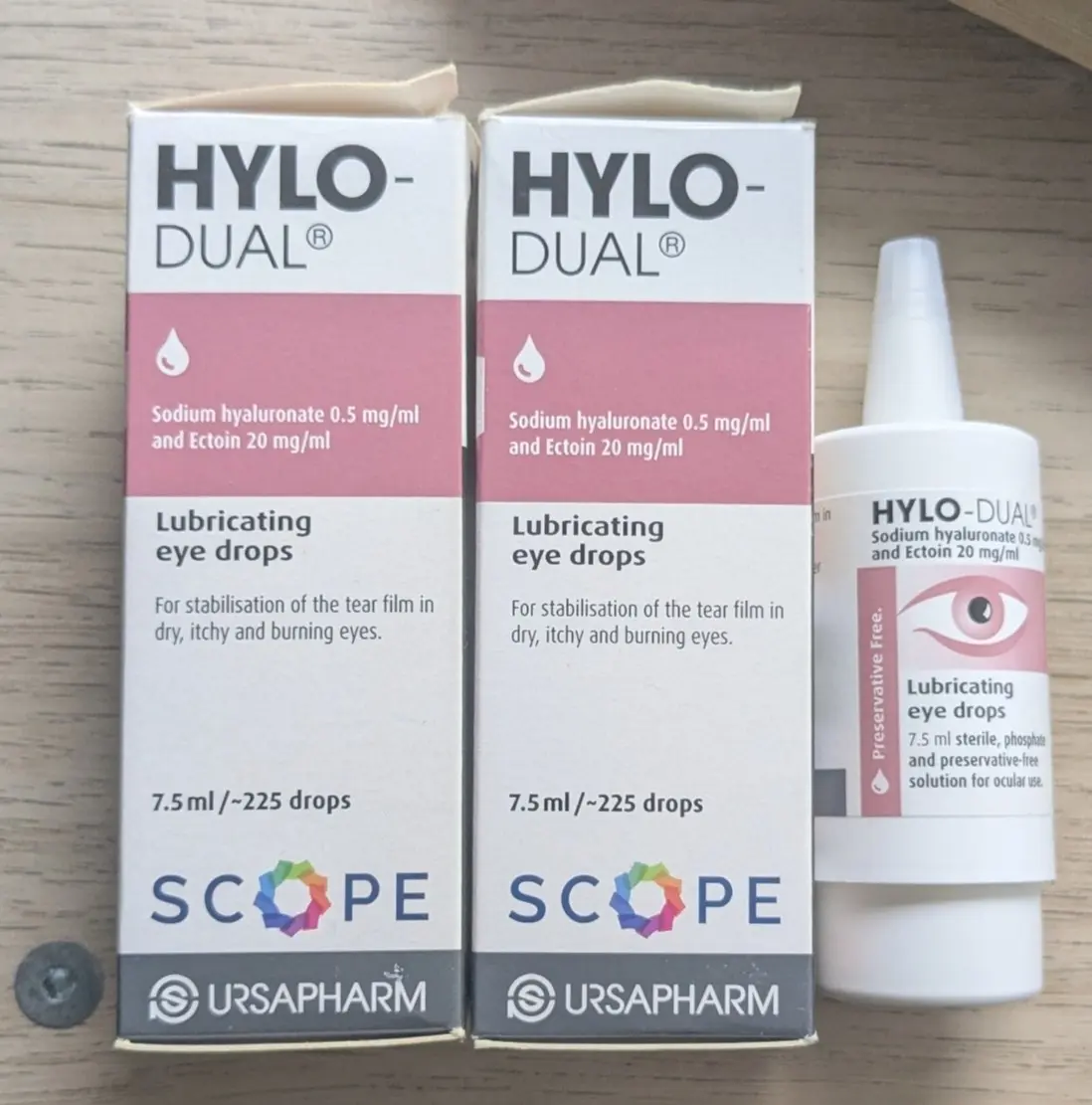
When I worked in science, we shared research ideas on paper all the time. I printed out student essays to mark them up with red pen. While I’ve been an enthusiastic user of digital tools for drawing — my last two years of teaching were delivered almost exclusively through whiteboarding apps — they never feel as freeing as paper and they also make my eyes hurt.
My biggest issue with paper has been organization. I’m a prolific accumulator and discarder of physical notebooks. What I really need is a way to get ideas on paper that I can then easily organize on a computer. I think I’ve found something close enough. All I need is my phone, a notepad, a few apps, and a script. My current work-flow looks something like this…
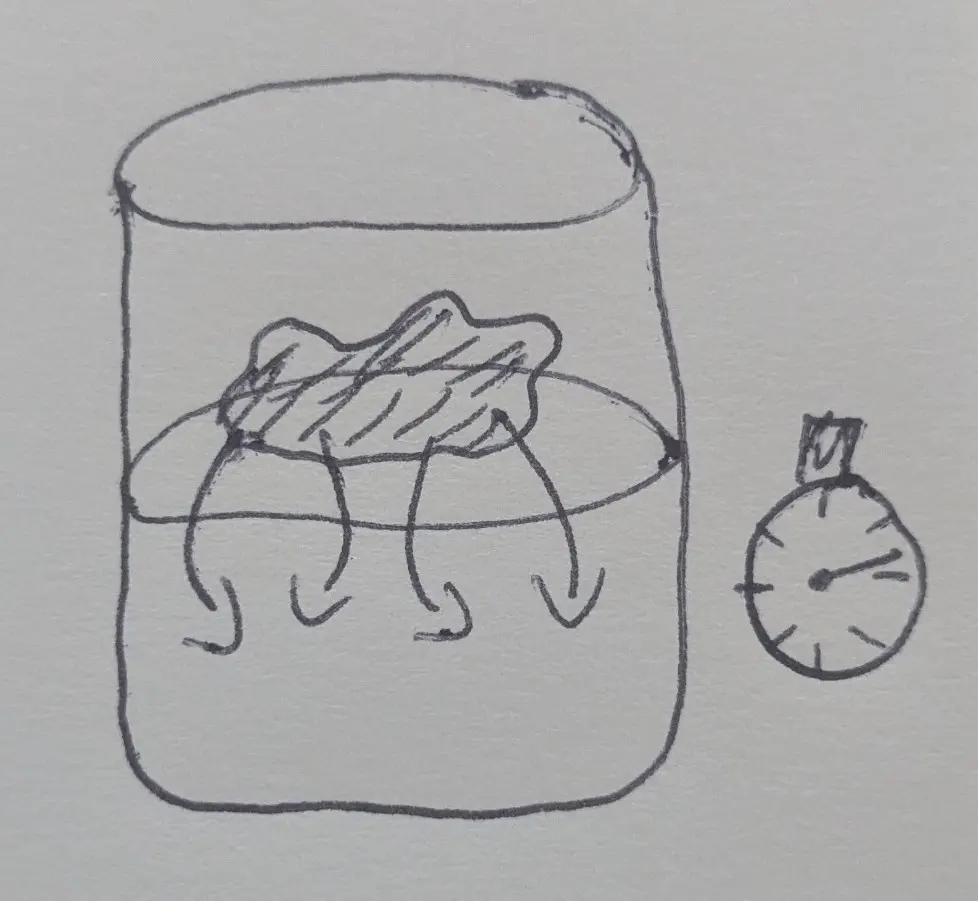
First, I sketch on a notepad in pen:

As I draw individual sketches, I photograph them, using a camera app that saves images to a specific folder on my phone:
Syncthing syncs that folder to my computer:
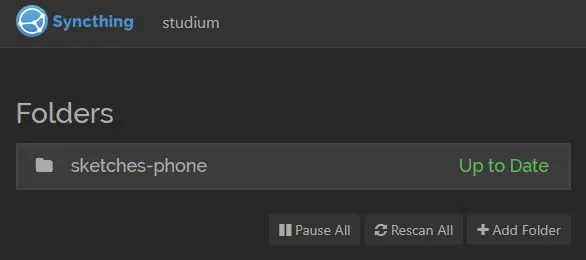
That folder gets populated with images, and a PureRef .pur file gets automatically built using a script on my computer that watches the folder for image files:
# Sketches directory
IMG_20260606_145546.jpg
IMG_20260606_145549.jpg
Sketches.pur
PureRef automatically arranges the photos in a spatially optimal way in the image board:
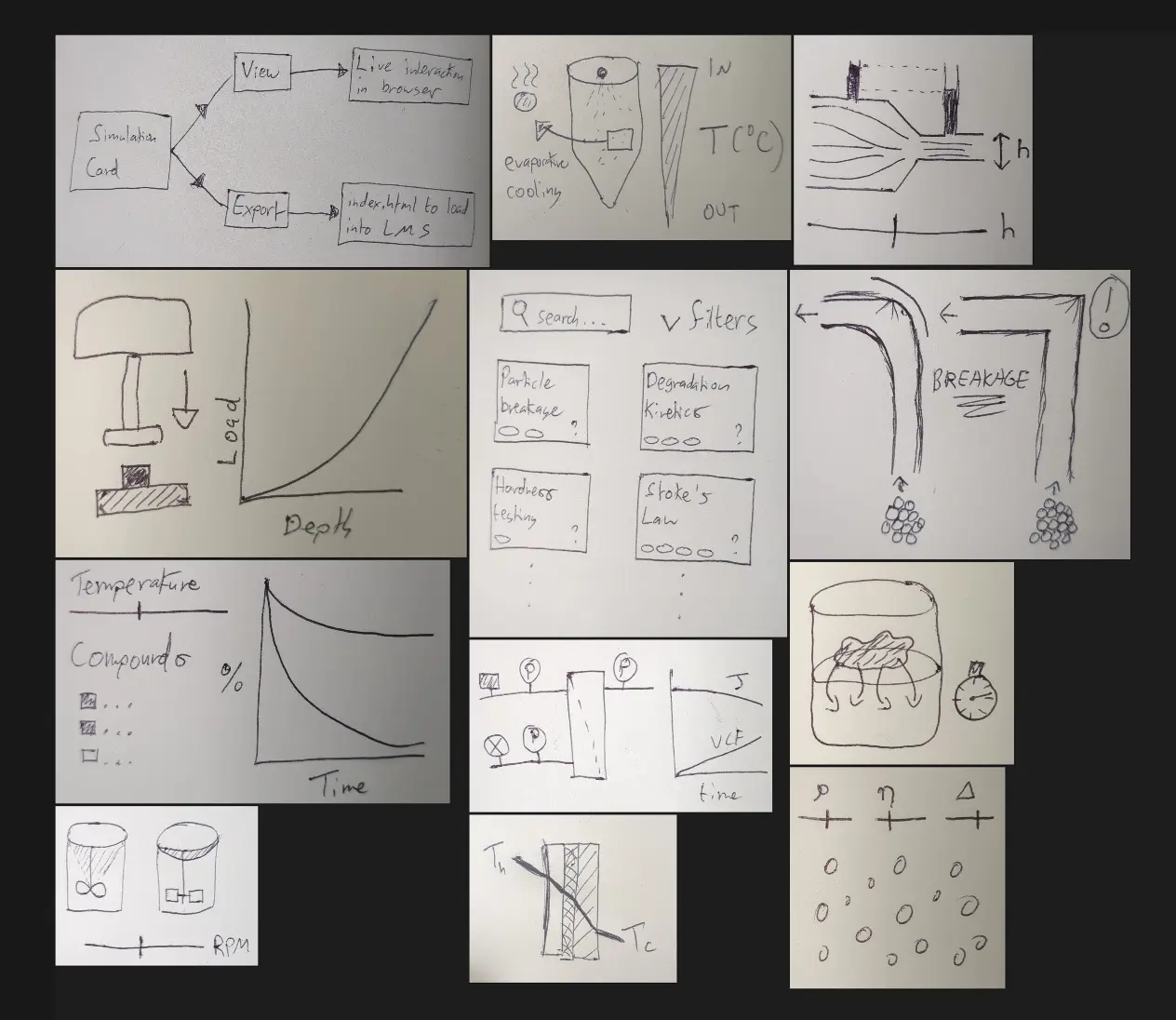
When the board has enough ideas, I manually organize, expand, annotate, and archive them:
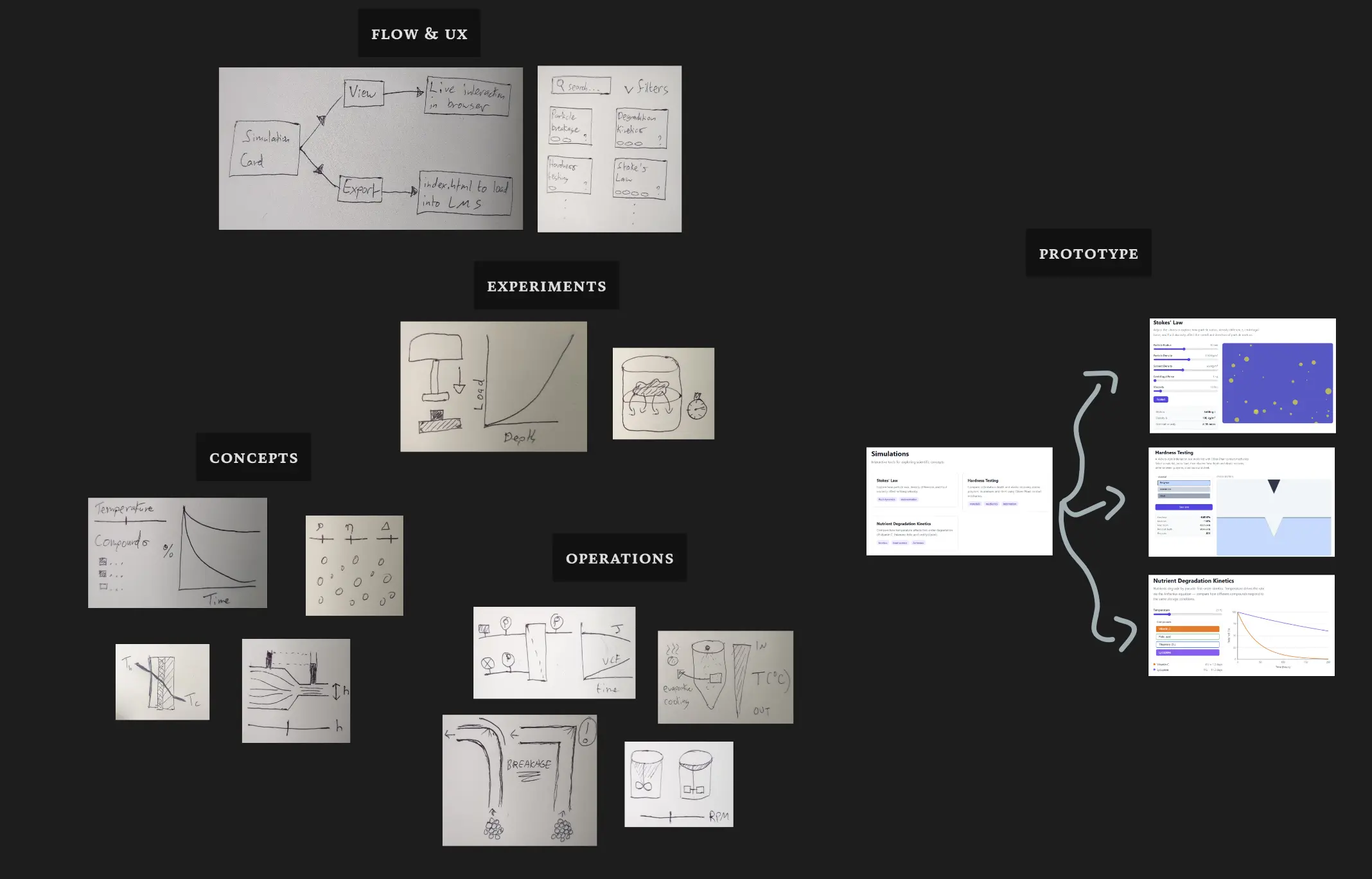
All of this was more awkward to set up than I had anticipated. For the photos, I needed to download the Open Camera app on my Pixel phone, so I could save some photos to an arbitrary folder. The Pixel did not make this easy with the default camera app. I now use the Open Camera app strictly for sketches and use the default app for all other photos.
Syncthing made syncing between phone and computer easy. No issues there.
PureRef is an amazing tool for image boards that I highly recommend. I used it for a long time without knowing it had a command-line interface, which makes it possible to automate these kind of tasks. To create an image board from a set of images, for example, you can run this command on Windows:
# powershell
PureRef.exe -c "load;$((Get-ChildItem *.jpg).FullName -join ',')" -c "save;out.pur"
Or the following on Linux:
# bash
PureRef -c "load;$(printf '%s,' *.jpg)" -c "save;out.pur" -c exit
The command can be wrapped in a script for watching the sync target and building the image board automatically. I’ve included examples below for how you might do this on Windows or Linux:
PowerShell (Windows)
<#
Watches Pictures\Sketches and rebuilds the PureRef board whenever images are added.
Register once with Task Scheduler to run at logon (see bottom of file).
#>

$SketchesDir = Join-Path $env:USERPROFILE "Pictures\Sketches"
$OutputPur   = Join-Path $SketchesDir "Sketches.pur"
$OutputPng   = Join-Path $SketchesDir "Sketches.png"
$LogFile     = Join-Path $env:LOCALAPPDATA "sketches-pureref\sketches-pureref.log"
$PureRef     = "C:\Program Files\PureRef\PureRef.exe"
$Exts        = @('.jpg', '.jpeg', '.png', '.webp')

function Write-Log([string]$msg) {
    $dir = Split-Path $LogFile
    if (-not (Test-Path $dir)) { New-Item -ItemType Directory -Path $dir -Force | Out-Null }
    "[$( Get-Date -Format 'yyyy-MM-dd HH:mm:ss' )] $msg" | Add-Content -LiteralPath $LogFile
}

function Invoke-Rebuild {
    Write-Log "Starting board rebuild..."
    Start-Sleep -Seconds 5   # let any rapid batch of images land before scanning

    $images = Get-ChildItem -LiteralPath $SketchesDir -File |
        Where-Object { $Exts -contains $_.Extension.ToLower() -and $_.FullName -ne $OutputPng } |
        Sort-Object Name

    if (-not $images) { Write-Log "No images found, skipping."; return }

    $imageList = ($images.FullName | ForEach-Object { $_ -replace ',', ',,' }) -join ','
    Write-Log "Found $($images.Count) image(s). Building board..."

    $prArgs = @(
        '-c', 'clearScene',
        '-c', "load;$imageList",
        '-c', "save;$OutputPur",
        '-c', "exportScene;$OutputPng",
        '-c', 'exit'
    )
    $outTmp = [IO.Path]::GetTempFileName()
    $errTmp = [IO.Path]::GetTempFileName()
    Start-Process -FilePath $PureRef -ArgumentList $prArgs -WindowStyle Minimized -Wait `
        -RedirectStandardOutput $outTmp -RedirectStandardError $errTmp
    Get-Content -LiteralPath $outTmp, $errTmp -ErrorAction SilentlyContinue | Add-Content -LiteralPath $LogFile
    Remove-Item -LiteralPath $outTmp, $errTmp -ErrorAction SilentlyContinue

    Write-Log "Done. Saved: $OutputPur and $OutputPng"
}

if (-not (Test-Path $SketchesDir)) { New-Item -ItemType Directory -Path $SketchesDir -Force | Out-Null }
Write-Log "Watcher started. Monitoring: $SketchesDir"

$watcher = New-Object System.IO.FileSystemWatcher $SketchesDir
$watcher.Filter = '*'

while ($true) {
    $change = $watcher.WaitForChanged([System.IO.WatcherChangeTypes]::Created, 60000)
    if (-not $change.TimedOut -and $Exts -contains [IO.Path]::GetExtension($change.Name).ToLower()) {
        Invoke-Rebuild
    }
}
Python (Linux)
#!/usr/bin/env python3
"""Watches ~/Pictures/Sketches and rebuilds the PureRef board whenever images are added."""

import subprocess
import sys
import time
from datetime import datetime
from pathlib import Path

SKETCHES_DIR = Path.home() / "Pictures/Sketches"
OUTPUT_PUR = SKETCHES_DIR / "Sketches.pur"
OUTPUT_PNG = SKETCHES_DIR / "Sketches.png"
LOGFILE = Path.home() / ".local/share/sketches-pureref.log"
EXTS = {".jpg", ".jpeg", ".png", ".webp"}


def log(msg: str) -> None:
    with LOGFILE.open("a") as f:
        f.write(f"[{datetime.now():%Y-%m-%d %H:%M:%S}] {msg}\n")


log("Starting board rebuild...")

# Brief pause so any rapidly-added batch of images all land before we scan
time.sleep(5)

images = sorted(
    p for p in SKETCHES_DIR.iterdir()
    if p.is_file() and p.suffix.lower() in EXTS and p != OUTPUT_PNG
)

if not images:
    log("No images found, skipping.")
    sys.exit(0)

# Comma-separated path list; PureRef escapes literal commas as double-comma
image_list = ",".join(str(p).replace(",", ",,") for p in images)

log(f"Found {len(images)} image(s). Building board...")

with LOGFILE.open("a") as logf:
    subprocess.run(
        [
            "xvfb-run", "--auto-servernum",
            "--server-args=-screen 0 1280x800x24",
            "/usr/bin/PureRef",
            "-c", "clearScene",
            "-c", f"load;{image_list}",
            "-c", f"save;{OUTPUT_PUR}",
            "-c", f"exportScene;{OUTPUT_PNG}",
            "-c", "exit",
        ],
        stdout=logf, stderr=subprocess.STDOUT, check=True,
    )

log(f"Done. Saved: {OUTPUT_PUR} and {OUTPUT_PNG}")
On Windows, I have a task defined in Task Scheduler to trigger the script when I log in to the computer (something like systemd can be used for this purpose on Linux); using conhost.exe --headless powershell.exe was the only way I could find to stop a persistent terminal being open while the script ran:
C:\Windows\System32\conhost.exe --headless powershell.exe -WindowStyle hidden -NoProfile -NonInteractive -File %USERPROFILE%\dev\scripts\sketches-pureref.ps1
I still spend a lot of time at the computer and I still use eye drops. But this paper-oriented workflow is a nice alternative when I’m tired of screens. The way PureRef automatically arranges the images gives me a nice feeling of an idea being built up over time.
That initial stage is purely about collecting ideas. Once I have enough ideas on a board, I move it into a separate folder where I manually group and annotate the ideas. This division of idea accumulation from idea sorting is broadly similar to the McPhee method.
While this process was more cumbersome to set up than I’d like, it has helped me work on paper more. If you are similarly bleary-eyed from screens, something like this might be worth a try.